
How to Install and Troubleshoot TigerVNC on Ubuntu 24.04.1
Install TigerVNC on Ubuntu 24.04.1, create a usable remote desktop session, and fix the most common setup issues.
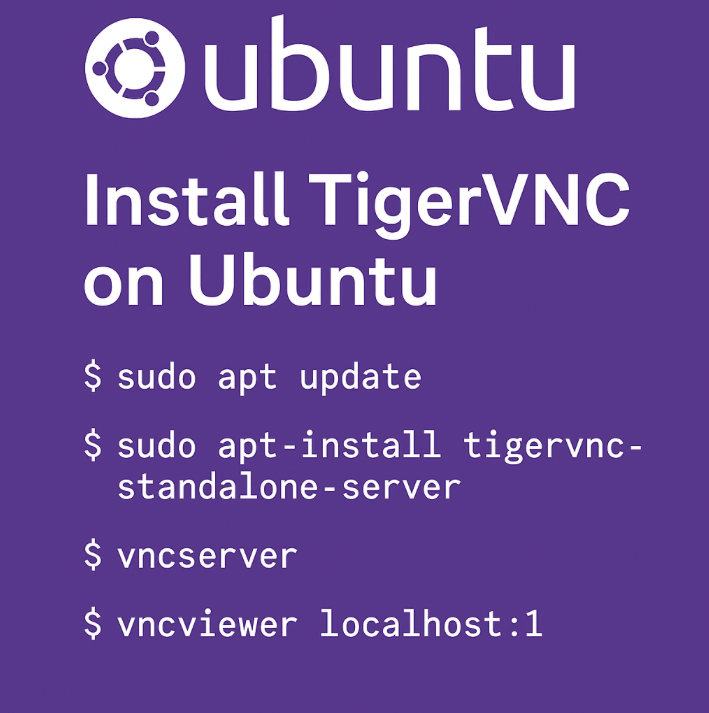
Running a graphical desktop remotely with VNC is still one of the easiest ways to reach an Ubuntu machine when you need a full desktop instead of just SSH. On Ubuntu 24.04.1, TigerVNC works well, but the first pass usually breaks because of missing desktop session configuration or mismatched startup scripts.
Install the server
sudo apt update && sudo apt install tigervnc-standalone-serverCreate the first VNC session
Run vncserver once so TigerVNC can create its initial configuration and prompt for a password.
vncserverThat first run normally creates a display such as :1 and a config directory at ~/.vnc/.
Fix the startup script
If the connection succeeds but you only get a blank or broken desktop, edit ~/.vnc/xstartup so it launches the desktop environment you actually use. A minimal XFCE setup often looks like this:
#!/bin/sh
unset SESSION_MANAGER
unset DBUS_SESSION_BUS_ADDRESS
startxfce4
Then make it executable:
chmod +x ~/.vnc/xstartupRestart cleanly when testing
vncserver -kill :1
vncserver :1
Troubleshooting notes
- A blank screen usually points to the wrong desktop startup command.
- Authentication failures normally mean the VNC password needs to be reset with
vncpasswd. - If the session starts and immediately exits, inspect the logs in
~/.vnc/for the underlying desktop or permission error.