
How to Change Screenshot Location and Format on a Mac
Move screenshots off your desktop and switch between PNG, JPG, PDF, and other formats with a few macOS commands.
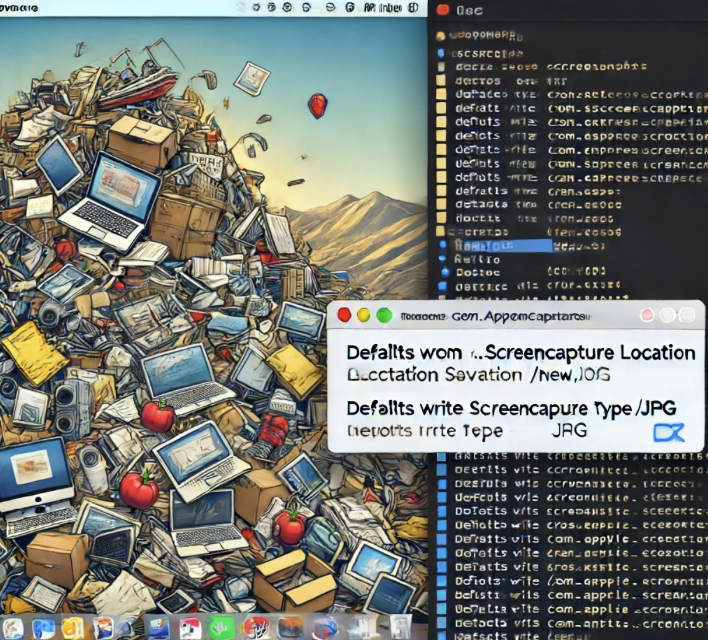
If you take a lot of screenshots on macOS, the desktop becomes cluttered fast. Apple stores screenshots on the desktop by default and uses PNG unless you change the setting yourself. The good news is that both settings are easy to update from Terminal.
Change the save location
Create a folder first, then point macOS at it:
mkdir -p ~/Pictures/Screenshots
defaults write com.apple.screencapture location ~/Pictures/Screenshots
killall SystemUIServer
After SystemUIServer restarts, new screenshots will land in the folder you selected.
Change the file format
macOS supports several screenshot formats, including png, jpg, pdf, and tiff.
defaults write com.apple.screencapture type jpg
killall SystemUIServer
If you ever want to go back to PNG:
defaults write com.apple.screencapture type png
killall SystemUIServer
Quick reminder
- Location changes affect only future screenshots.
- Format changes also apply only to new captures.
- If nothing seems to change, the
killall SystemUIServerstep is usually what was missed.
This is one of the simplest quality-of-life Mac tweaks, especially if you take screenshots every day for support docs, blog posts, or bug reports.