
How to Purge Windows Update Cache and Fix Stuck Updates
Learn how to fix a stuck Windows Update by purging the Update Cache. Follow these simple steps to manually purge the Cache and update your system.
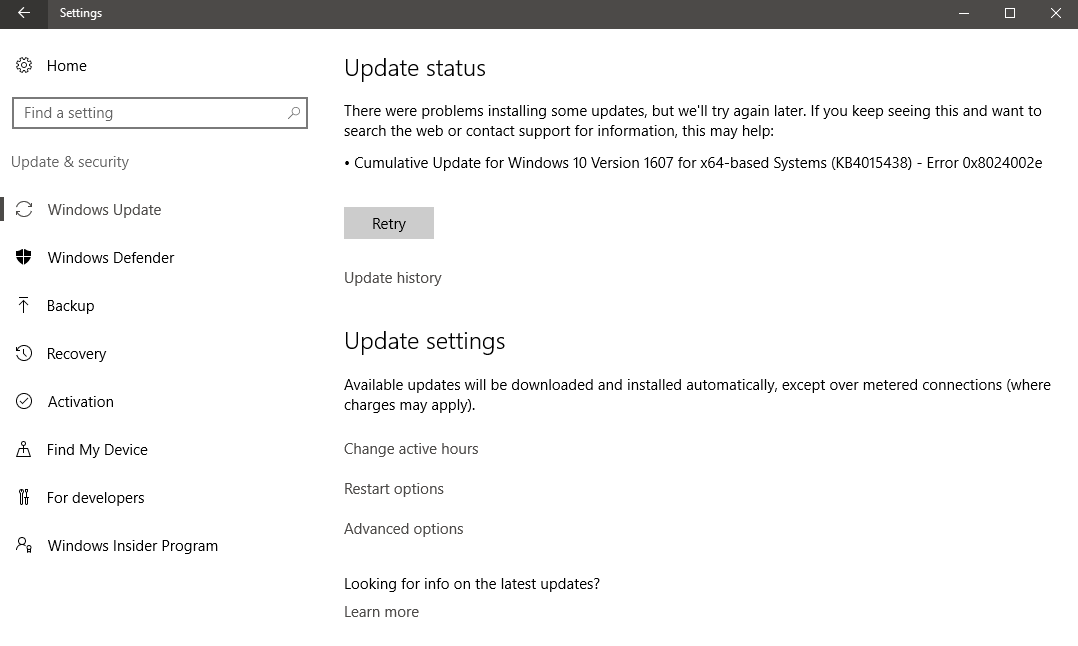
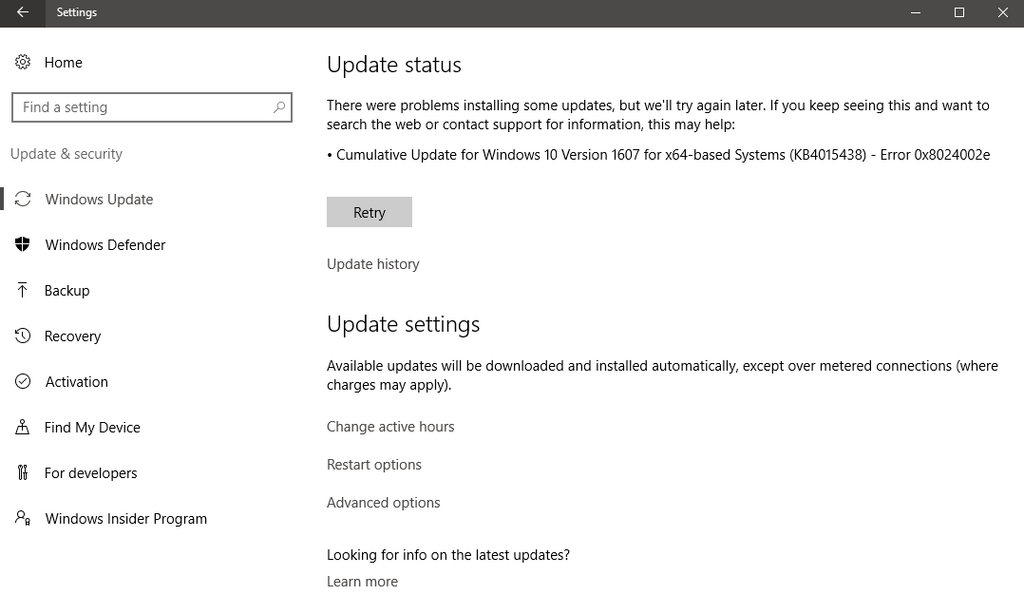 Are you stuck with a Windows Update? The issue could be related to corrupted Windows Update Cache files.
If that is the case you will need to purge the Windows Update Cache.
The Update Cache is a special folder that stores the update installation files. It is located at C:\Windows\SoftwareDistribution\Download.
How to manually Purge the Update Cache:
1- Turn off the Windows Update service, then open the Command Prompt, type the
net stop wuauserv
2- Open File Explorer and navigate to C:\Windows\SoftwareDistribution\Download and then delete the content of the Download folder.
3- Open a new Command prompt window and run the
net start wuauserv
command to restart the Windows Update service.
4- Restart your computer an run Windows Update. It should work now.