
Brother HL-L2340DW Goes Offline on Eero 6 Plus: How to Fix It Permanently
Why this Brother printer keeps dropping off an Eero 6 Plus network and the practical fix that stops the cycle of resets and reconfiguration.
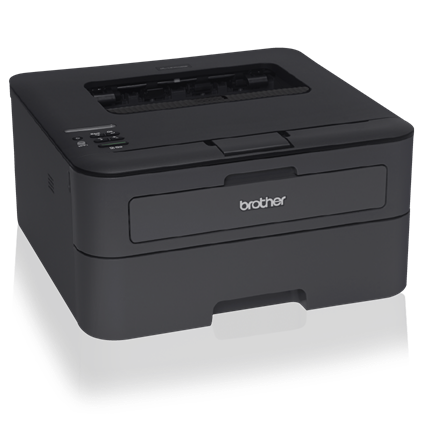
f you’re using a Brother HL-L2340DW laser printer on Wi-Fi with an Eero 6 Plus mesh router, you may notice a frustrating pattern:
- The printer works after a power cycle
- After a few minutes of idle time, it becomes unreachable
- Printing fails until you reboot the printer again
Factory resets and Wi-Fi reconfiguration don’t solve it — the problem keeps coming back.
This is not a defective printer. It’s a compatibility issue between modern mesh Wi-Fi behavior and an older printer Wi-Fi chipset. The good news: it can usually be fixed with the right settings.
Why This Happens
Modern mesh routers like Eero aggressively optimize wireless traffic using features such as:
- Band steering (2.4 GHz ↔ 5 GHz)
- WPA3 transition mode
- Client power-saving optimizations
- IPv6 networking
The Brother HL-L2340DW:
-
Is
2.4 GHz only
-
Has a
basic Wi-Fi radio
-
Often fails to reconnect after the router marks it as “idle”
The result: the printer appears to be “asleep,” but it’s actually dropped from the Wi-Fi network.
Required Eero 6 Plus Settings (Most Important Section)
Open the Eero app and apply the following changes.
1. Disable WPA3 (Critical)
Settings → Network settings → WPA3
-
Turn
WPA3 OFF
-
Use
WPA2 only
WPA3 transition mode frequently breaks older Wi-Fi devices.
2. Turn Off Client Steering
Settings → Network settings
-
Disable
Client Steering
This prevents Eero from trying to move the printer to unsupported bands.
3. Force a Clean 2.4 GHz Connection (Setup Trick)
Eero doesn’t allow permanent band separation, but you can do this temporarily:
Settings → Troubleshooting → My device won’t connect → Pause 5 GHz
Then:
- Pause 5 GHz
- Power-cycle the printer
- Reconnect the printer to Wi-Fi
- Confirm printing works
- Re-enable 5 GHz
This ensures the printer locks onto 2.4 GHz properly.
4. Disable IPv6
Settings → Network settings → IPv6
-
Turn
IPv6 OFF
-
Restart the Eero network
Brother printers frequently fail to discover after sleep when IPv6 is enabled.
5. Reserve an IP Address
Settings → Network settings → Reservations & Port Forwarding
- Add the printer
- Reserve its IP address
Without this, Eero may silently drop the printer’s lease while it sleeps.
Printer Settings to Change (Once)
On the Brother printer’s control panel:
-
Menu → General Setup → Ecology
-
Set
Sleep Time
to the
maximum
-
Disable
Deep Sleep
-
Power-cycle the printer
This reduces how often the router flags the printer as inactive.
Firmware Update (Strongly Recommended)
If you haven’t updated the printer firmware:
-
Connect the printer to a computer via
USB
-
Download and install the latest Brother firmware
-
Power-cycle the printer
-
Reconfigure Wi-Fi
after
changing the Eero settings
Earlier firmware versions have known Wi-Fi sleep bugs.
What Results to Expect
After applying these changes:
- The printer stays online for days
- Printing works after long idle periods
- No more constant power-cycling
If problems persist even after all steps:
- The printer’s Wi-Fi hardware is simply at its limit
- USB printing or a wired printer model is the only 100% reliable solution
That’s a hardware-era limitation — not a configuration mistake.
Final Recommended Configuration (Quick Checklist)
- WPA2 only (no WPA3)
- Client Steering OFF
- IPv6 OFF
- IP reservation ON
- Deep Sleep OFF on the printer
This setup resolves the issue for the vast majority of Eero + Brother HL-L2340DW users.