
Getting Started with Ollama: Installing and Configuring Local AI Models
Running AI locally is no longer limited to high-end servers or complex setups. With Ollama, developers can install and manage powerful open-source language models on macOS, Linux,
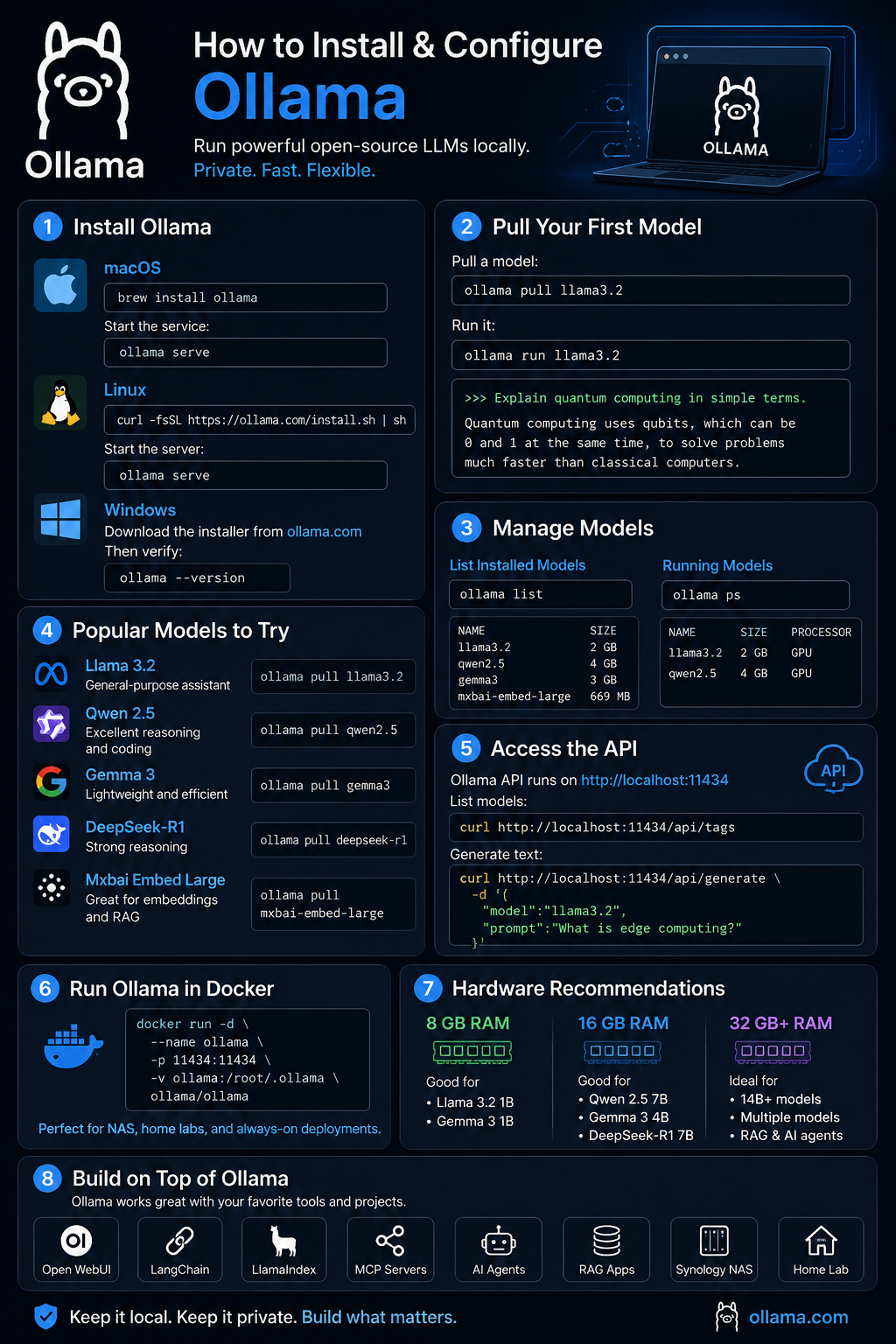
Artificial Intelligence doesn’t always have to run in the cloud. With Ollama, you can run powerful large language models directly on your own hardware, giving you more privacy, lower costs, and the flexibility to experiment with different models.
Here’s a step-by-step guide to installing and configuring Ollama.
Why Ollama?
Ollama makes it easy to run open-source AI models locally without dealing with complicated setup processes.
Benefits include:
- Privacy and local processing
- No API costs for everyday experimentation
- Support for multiple models
- Easy model management
- Available for macOS, Linux, and Windows
Installing Ollama
macOS
Install using Homebrew:
Or download the installer from:
Start the service:
Linux
Install with:
Verify installation:
Start the server:
Windows
Download the installer from:
After installation, open PowerShell and verify:
Downloading Your First Model
Pull a model:
Run it:
You can now interact with the model directly from the terminal.
Example:
Popular Models to Try
Llama 3.2
General-purpose assistant.
Qwen 2.5
Excellent reasoning and coding performance.
Gemma 3
Lightweight and efficient.
DeepSeek-R1
Strong reasoning capabilities.
Mxbai Embed Large
Ideal for semantic search and retrieval systems.
Viewing Installed Models
List available models:
Example output:
Monitoring Running Models
See which models are currently loaded:
This helps monitor memory usage and active sessions.
Accessing Ollama Through the API
By default, Ollama listens on:
Test the API:
Generate text:
Running Ollama in Docker
Example Docker command:
For NAS users or home labs, Docker provides an easy way to keep Ollama running persistently.
Hardware Recommendations
8 GB RAM
Suitable for:
- Llama 3.2 1B
- Gemma 3 1B
16 GB RAM
Good for:
- Qwen 2.5 7B
- Gemma 3 4B
- DeepSeek-R1 7B
32 GB+ RAM
Ideal for:
- Larger 14B+ models
- Multiple models
- RAG applications and AI agents
Building on Top of Ollama
Ollama integrates well with:
- Open WebUI
- LangChain
- LlamaIndex
- MCP servers
- AI agents
- RAG applications
- Home lab environments
- Synology NAS deployments
Final Thoughts
Running AI locally has become easier than ever. Ollama lowers the barrier to entry and gives developers, hobbyists, and home lab enthusiasts the ability to experiment with modern language models while maintaining control over their data and infrastructure.
Whether you’re building AI agents, semantic search systems, coding assistants, or private chatbots, Ollama is an excellent place to start.
#AI #GenAI #LLM #MachineLearning #LocalAI #Ollama #HomeLab #Docker #OpenSource #ArtificialIntelligence